Pro. Multi-stage approval and multiple workflows need Editorial Workflow Pro, with the free plugin version 1.2.0 or later.
The free plugin enforces one review. With Pro you can add up to five stages between Review and Approved, such as Legal review and Final check. Content moves through them in order, and Approve is offered only after the last one. You can also build workflow templates for a post type, or for posts with certain categories or terms.
Before you start
Set the publish gate to Enforce in Workflow settings for each post type that has stages. Otherwise people can still publish without them. When a workflow has stages or a checklist and its post types are not set to Enforce, the workflow form shows: “People can still publish ÔǪ without these stages, because the publish gate is not set to Enforce. Change it in Workflow settings.” See Publishing and the publish gate.
The Workflows screen is open to workflow managers (people with sit_cwm_manage_workflows).
The Workflows screen
Go to Editorial Workflow  Workflows. Each workflow is listed with what it matches and its path from Review, through its stages, to Approved.
The built-in Default workflow always exists and cannot be deleted. It is “Used for every post that no other workflow matches.” It has no stages, so posts it covers follow the free plugin’s single review. You can still give it a checklist and sign-offs.
Create a workflow
- Click New workflow.
- Enter a Name. The Id is filled in from the name; it is “Fixed once the workflow is saved.”
- Tick the Post types it applies to.
- Under Terms, choose categories or other terms if it should apply only to some posts. “Leave empty to match every post of these types.” A post matches when it has one of the terms.
- Set the Priority, from 0 to 100. “When several workflows match a post, the highest priority wins.” On a tie, the workflow with the lower id wins.
- Optionally choose the Group that owns Review. See Reviewer groups & auto-assignment.
- Add stages (below), then click Save.
Add stages
“Content moves through these in order, after Review and before Approved.”
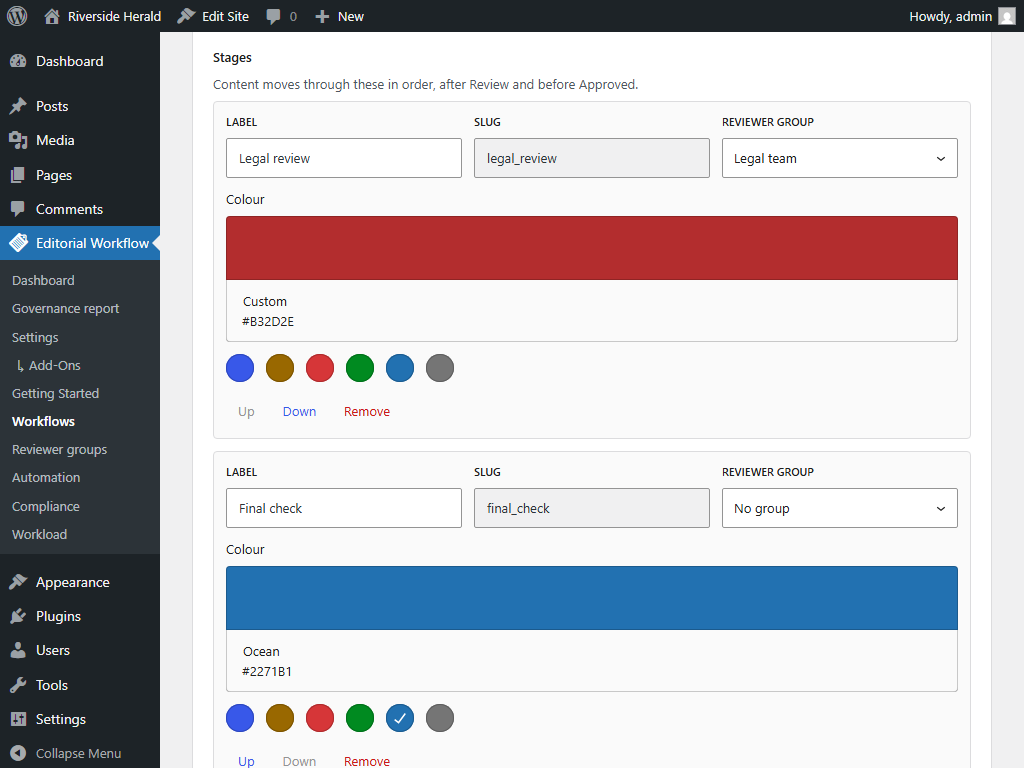
- Click Add stage. A workflow can have up to five.
- Enter a Label, such as Legal review. The Slug is filled in from the label (for example
legal_review). It cannot change after the workflow is saved, because posts may already sit in that stage, and each slug can be used by only one stage across all workflows. - Optionally choose a Reviewer group. Only its members, or a workflow manager, can then move content out of that stage.
- Pick a Colour for the stage’s status.
- Use Up and Down to change the order.
With stages, the path through review is Review ÔåÆ each stage in order ÔåÆ Approved. From Review or any stage, the reviewer can also send the content back with Needs changes. Review no longer leads straight to Approved. The free plugin’s other statuses and moves stay as they are.
Checklists and sign-offs
Each workflow, including Default, has these settings below the stages:
- Checklist. “Required items must be done before content can reach the status they gate.” Click Add item, give it a Label, choose the Check (Manual: someone ticks it; Featured image is set; Excerpt is written; Has a category other than the default; Has at least N words; AI use is declared), choose the status it is Needed before (Review, one of your stages, or Approved), and tick Required. An incomplete item blocks the step it gates, and the sidebar says why.
- Reset manual items when changes are requested.
- Sign-offs required before approval, from 1 to 5. “The approval itself counts as one, so 1 needs no separate sign-off.” Each sign-off records the content hash, so it names the exact content. If the text changes during review, the sign-offs are cleared. Nobody can sign off their own content.
- Require a fresh review if content changes. A stale approval cannot be published.
How a post gets its workflow
When a post leaves Draft (or starts again after being published), it is assigned to the workflow that matches it at that moment, and keeps it for the whole review cycle, even if its categories change. The activity log records this as “Workflow assigned”.
Change or delete a workflow
- Remove a stage: click Remove, then save. “A stage that still has posts in it cannot be removed.”
- Delete a workflow: click Delete. “Posts that have finished keep their history. Posts still in progress move to the workflow that matches them now.” A workflow cannot be deleted while posts sit in one of its stages. Trashed posts count.
If Pro is deactivated
Without Pro, posts in a Pro stage show an unknown status until Pro is active again. The Plugins screen warns you first. To move them back, use the Return to Review tab on the Workflows screen: “Send content waiting in a Pro stage back to Review, one batch at a time.” Moves go oldest first, and each move is logged.
Without an active licence
Your workflows keep running. Stages, every approval rule, checklist ticks and sign-offs all keep working. You cannot change settings until a licence is active. When a licence expires, Pro keeps working on the version you have, with every feature and setting; you stop getting updates and support until you renew.